Showing posts with label SQL Server. Show all posts

Thursday, July 23, 2015

Write recursive t-sql code to find NTILE / DECILE / Quintile based on Salary descending for employee in the Department.


Write a query which will give below output.


There’s a table with below data


Query:

Declare @v_Employee as table(DeptID int, EmpNo int, Salary decimal(18,2))

Declare @v_Ntile int

Set @v_Ntile = 2

Insert into @v_Employee values(1,1,1000)
Insert into @v_Employee values(1,2,2000
Insert into @v_Employee values(1,3,3000)
Insert into @v_Employee values(2,4,4000)
Insert into @v_Employee values(2,5,5000)
Insert into @v_Employee values(2,6,6000)
Insert into @v_Employee values(2,7,7000)

Select * From @v_Employee

Select 

    DeptID, 
    EmpNo, 
    Ntile(@v_Ntile) Over(Partition By DeptID Order By Salary  Desc)  NtileNo
From 

    @v_Employee

Note:

1) To find Decile value, set Ntile value to 10.
2) To find Quin-tile (Quintile) value, set Ntile value to 5.

Wednesday, July 22, 2015

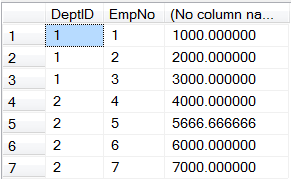
Write recursive t-sql code to fill missing Salary for employee using Average for the Department.

There’s a table with below data


Write a query which will give below output.


Query:

Declare
@v_Employee as table(DeptID int, EmpNo int, Salary decimal(18,2))

Insert into @v_Employee values(1,1,1000)
Insert into @v_Employee values(1,2,null)
Insert into @v_Employee values(1,3,3000)
Insert into @v_Employee values(2,4,4000)
Insert into @v_Employee values(2,5,null)
Insert into @v_Employee values(2,6,6000)
Insert into @v_Employee values(2,7,7000)

Select * From @v_Employee

Select


T.DeptID,

EmpNo,
Case when Salary is not null then Salary else AvgSalary end
From


(
 select
 DeptID,
 avg(Salary) as AvgSalary
 from
 @v_Employee
 Group By
 DeptID
) T
inner join @v_Employee E on E.DeptID = T.DeptID

Friday, March 13, 2015

Write recursive t-sql code to generate reverse of given string

Create Function [dbo].[fn_Reverse](@v_Input nvarchar(max))
Returns nvarchar(max)
as
Begin
If (len(@v_Input) <> 1)
Begin
return [dbo].[fn_Reverse](substring(@v_Input, 2, len(@v_Input) - 1)) + substring(@v_Input, 1, 1)
End
return @v_Input
End
GO

select [dbo].[fn_Reverse]('acbdkkdfkdkf')
Go

--> fkdkfdkkdbca

Write recursive t-sql code to get Factorial of integer number

Create Function dbo.fn_Factorial(@v_Number bigint)
Returns bigint
as
BeginIf (@v_Number != 1)
go
Select dbo.fn_Factorial(6)

Begin
return @v_Number * dbo.fn_Factorial(@v_Number - 1)
End
return 1
End
go

Saturday, February 7, 2015

Write T-SQL code to take m valid values from User and provide all valid Sudoku possibilities for nXn matrix

Continue to my last post “Write T-SQL code to provide all valid Sudoku possibilities for nXn matrix.

I modified the procedure sc.cp_Create_MetrixPosibilities_nXn which also take m valid values from User for matrix and create table dbo.MetrixPosibilities_nXn with all valid Sudoku possibilities.

Below are parameters for the procedure sc.cp_Create_MetrixPosibilities_nXn.

  1. @p_MatrixSize
    1. Size of matrix for which we want to create all the possibilities.
  2. @v_PositionMatrixValue
    1. Table Value Parameter which is used to pass valid user entries. Below is structure of TVP.
      1. PositionX
      2. PositionY
      3. Value

Suppose, we have 4X4 matrix with below values for which I want to create all valid possibilities

4X4 - Copy

We can execute procedure as below.

Declare @v_PositionMatrixValue as PositionMatrixValue

Insert into @v_PositionMatrixValue values(1,1,1)
Insert into @v_PositionMatrixValue values(2,2,2)
Insert into @v_PositionMatrixValue values(3,3,3)
Insert into @v_PositionMatrixValue values(4,4,4)

EXEC sc.cp_Create_MetrixPosibilities_nXn 4, @v_PositionMatrixValue, 0
Go

Select * From MetrixPosibilities_4X4

Here, we have 2 valid possibilities created as below in table dbo.MetrixPosibilities_4X4.

image

Below are the scripts to download.

1. sc.cp_Create_MetrixPosibilities_nXn_V2.sql

Monday, November 24, 2014

Write t-sql code to generate Fibonacci series without using any inbuilt function

Declare @v_Number INT = 158919851
Declare @v_First INT = 0
Declare @v_Second INT = 1
Declare @v_Temp INT

Print @v_First

While(@v_Second < @v_Number)
Begin
    Set @v_Temp = @v_First + @v_Second
    Set @v_First = @v_Second
    Set @v_Second = @v_Temp

    Print @v_First
End

Write t-sql code to check if given number is Palindrome or not without using any inbuilt function

Declare @v_ActualNumber INT = 158919851
Declare @v_ReverseNumber INT = 0
Declare @v_TempNumber INT
Declare @v_Number INT

Set @v_TempNumber = @v_ActualNumber

While(@v_TempNumber > 0)
Begin
    if (@v_TempNumber >= 10)
    Begin
        Set @v_Number = @v_TempNumber%10

        Set @v_ReverseNumber = @v_ReverseNumber + @v_Number

        Set @v_TempNumber = (@v_TempNumber - @v_Number)/10

        Set @v_ReverseNumber = @v_ReverseNumber * 10
    End
    Else
    Begin
        Set @v_ReverseNumber = @v_ReverseNumber + @v_TempNumber

        Set @v_TempNumber = 0
    End
End

if (@v_ActualNumber = @v_ReverseNumber)
Begin
    Print 'Palindrome Number'
End
Else
Begin
    Print 'Not Palindrome Number'
End

Write t-sql code to get Square root of integer number without using SQRT function

Declare @v_ActualNumber INT
Declare @v_FinalSquareRootNumber INT
Declare @v_SquareRootNumber INT
Declare @v_ID INT

Set @v_ActualNumber = 63297936
Set @v_FinalSquareRootNumber = 1
Set @v_ID = 2

While(@v_ActualNumber <> 1)
Begin
    if (@v_ActualNumber%@v_ID = 0)
    Begin
        Set @v_SquareRootNumber = @v_ID

        Set @v_ActualNumber = @v_ActualNumber/(@v_SquareRootNumber * @v_SquareRootNumber)

        Set @v_FinalSquareRootNumber = @v_FinalSquareRootNumber * @v_SquareRootNumber
    End
    Else
    Begin
        Set @v_ID = @v_ID + 1
    End
End

Select @v_FinalSquareRootNumber

Wednesday, April 2, 2014

Schedule Database Backup using Windows Task Scheduler

You may have seen my last past about to Auto synchronize Data from Production to Development using Script Daily.

On top of that, we also had requirement to schedule database backup one database is synchronized.

We also used windows task scheduler using batch file to do this task because we had SQL Server Express edition installed on our Server.

Batch File

Now, we will see how to create batch file which will execute SQL Server BACKUP DATABASE command to take backup of database from server to local file system.

We have also created query so it will create backup in below format.
Database_YYYYMMDD_hhmmss
(YYYY = Year, MM = Month, DD = Day, hh = hour, mm = minute, ss = second).

Query:
SQLCMD -S [Server Name] -U [User Name] -P [Password] -Q "Declare @vDisk nvarchar(500); Set @vDisk = N'V:\Asif Ghanchi\Asif_'+ replace(replace(replace(convert(varchar,getdate(),120),'-',''),' ','_'),':','') + '.bak'; BACKUP DATABASE [Asif] TO DISK = @vDisk WITH NOFORMAT, NOINIT, NAME = N'Asif-Full Database Backup', SKIP, NOREWIND, NOUNLOAD, COMPRESSION, STATS = 10"
You can get more details about SQLCMD from below link.
http://technet.microsoft.com/en-us/library/ms162773.aspx


Below are details of above parameters.

1. [Server Name] : You can get server name from you SQL Server Management Studio (SSMS) using below query


Query:
Select @@servername


2. [User Name] (Optional): If you want to connect SQL Server using SQL Authentication then you can define your user name here. Else it will connect using Windows authentication.
3. [Password] (Optional) : You can define SQL Server User Name Password here.


Scheduler
Now, we will see how to create windows "Task Scheduler" which will execute above batch file daily.

To do that, we need to follow below steps.
1. Go to Start -> Control Panel -> Administrative Tools -> Task Scheduler
2. Click on "Create Basic Task".


3. Enter Name and Description of Task and Click Next.


4. Choose appropriate schedule type and Click Next. I have choose "Daily".


5. Choose appropriate start time and recurring based on Schedule Type selected in last step. I have choose 11 AM for every day.


6. Choose action which you want to perform and Click Next. We have choose "Start a program" because we want to execute batch file for this task.


7. Browse batch file location from where you want to execute batch file for this task and Click Next.


8. Review Screen and Click Finish.


9. Below is task which is created in Windows Task Scheduler.


Hope it will also be useful for your requirement also.

Monday, March 31, 2014

Schedule Data Backup from Production to Development

OR
Auto synchronize Data from Production to Development using Script Daily
OR
Refresh data from Production to Development Server.
We mostly seen a situation where we want to synchronize data from Production to Development or QA Server on demand request, daily or weekly basis.
We have different tools to achieve it.
  1. Red Gate Data Synchronization
  2. Data Synchronize using SSDT
I come to a situation where my client doesn’t have a license software for SQL Server so we have installed express edition which doesn’t have SSDT installed with it.
In such situation, I thought to create dynamic procedure sc.cp_data_synch which will synchronize data from Production to Development Server based on table definition in Development Server.
Below are parameters for the procedure sc.cp_data_synch.
  1. @p_SourceServerName
    1. Server Name of Production Server from where we want to synchronize data.
  2. @p_SourceUserName
    1. User Name of Production Server.
  3. @p_SourcePassword
    1. Password of Production Server
  4. @p_SourceDatabaseName
    1. Database Name of Production Server
Below is sample execution plan.

exec [sc].[cp_data_synch]

@p_SourceServerName = 'Source Server Name',
@p_SourceUserName = 'Source User Name',
@p_SourcePassword = 'Source Password',
@p_SourceDatabaseName = 'Source Database Name'

Batch File

Now, we will see how to create batch file which will execute above script.

Below is command which is used to execute above script.

SQLCMD -S [Server Name] -U [User Name] -P [Password] -Q "EXEC Asif.dbo.cp_data_synch"

You can get more details about SQLCMD from below link.
http://technet.microsoft.com/en-us/library/ms162773.aspx
 Below are details of above parameters.

1. [Server Name] : You can get server name from you SQL Server Management Studio (SSMS) using below query

Query:
Select @@servername

2. [User Name] (Optional): If you want to connect SQL Server using SQL Authentication then you can define your user name here. Else it will connect using Windows authentication.

3. [Password] (Optional) : You can define SQL Server User Name Password here.

Scheduler

Now, we will see how to create windows "Task Scheduler" which will execute above batch file daily.

To do that, we need to follow below steps.

1. Go to Start -> Control Panel -> Administrative Tools -> Task Scheduler

2. Click on "Create Basic Task".


3. Enter Name and Description of Task and Click Next.


4. Choose appropriate schedule type and Click Next. I have choose "Daily".


5. Choose appropriate start time and recurring based on Schedule Type selected in last step. I have choose 9 AM for every day.


6. Choose action which you want to perform and Click Next. We have choose "Start a program" because we want to execute batch file for this task.


7. Browse batch file location from where you want to execute batch file for this task.


8. Below is task which is created in Windows Task Scheduler.


Below are scripts to download: