Below are steps to configure Kerberos Authentication for SQL Server.
1) Open Active Directory
2) Go to the properties of Server where SQL Server is installed –> Delegation tab –> Check “Trust this computer for delegation to any service (Kerberos only)”.


3) Create user under same domain where server is configured and change SQL Server and SQL Server Agent Services to use this account.

4) Go to properties of above user –> Delegation tab –> Check “Trust this user for delegation to any service (Kerberos only)”

5) Install Kerberos Configuration Manager for SQL Server from below link.
http://www.microsoft.com/en-us/download/details.aspx?id=39046
6) Run KerberosConfigMgr.exe –> Click on Connect
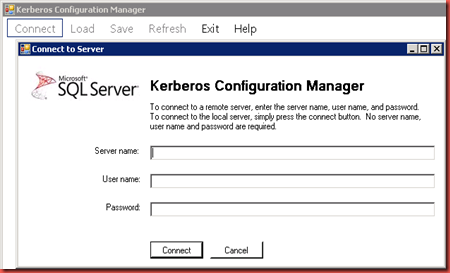

7) Enter Server name where SQL Server is installed, if its same server than keep it blank (means same server) and click on Connect. If you want to use someone else windows user then also enter User name and Password else it will consider your window login for authentication.
8) Click on SPN tab to see missing SPN entries


9) Click on Fix All to create SPN entries on server.(Note: User who logged in to this tool should have create access on SPN entries in Active Directory.)


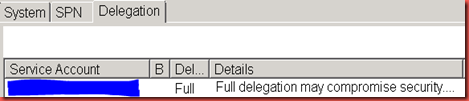
10) You also can verify Delegation of user under which SQL Services are running by clicking on Delegation tab.

11) Restart all SQL Server Services.
12) Once you complete all above steps. You can execute below query to verify if Kerberos authentication is enable from any server using SQL Server Client.
SELECT auth_scheme FROM sys.dm_exec_connections WHERE session_id = @@spid;
Expected output:


